Customizing the home page
The home page is what visitors see when they open your NADA site root URL (no path after the domain). NADA resolves that request in Page (default front controller): it uses your default home page setting, then menu definitions, and optionally static PHP views. You can customize the experience in two main ways—through Site administration (menus and settings), or by placing files under application/views/static/custom/ for advanced control.
Relationship to other settings
The Website title and Website footer text are set under Site configurations. Top navigation and custom pages are managed under Site menus. For the site header, footer, and styling (including themes/nada52/css/custom.css), see Customizing themes.
1. Using Site administration (menus and settings)
This path suits most catalogs: HTML content or a redirect, without touching server files.
Set the default home page
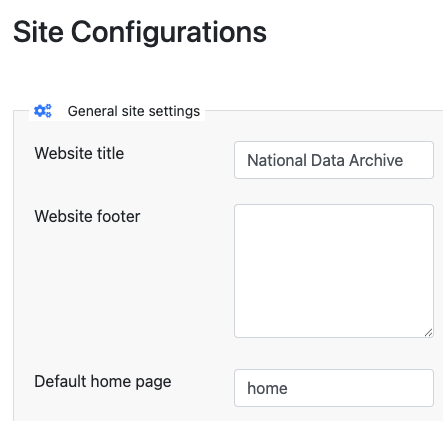
In Site administration, open Settings → Site configurations → General site settings. Use Default home page to set which slug loads when someone visits the site root.
Enter the first segment of the URL path NADA should use—for example catalog, home, or about—matching a menu entry or a static page name (see below).
Build content with menus
Under Site administration, use Menu → All pages (and related menu tools) to:
- Create HTML pages stored in the database and linked from the main menu.
- Add links that send users to another route (for example, open Catalog directly from the menu or as the configured default).
When Default home page points at a menu HTML page, NADA renders that page’s body at /. When it points at a link entry, visitors are redirected to the linked URL (for example /catalog).
Match the slug
The value in Default home page must match the URL / slug of the menu page or link you created—not necessarily the visible menu label.
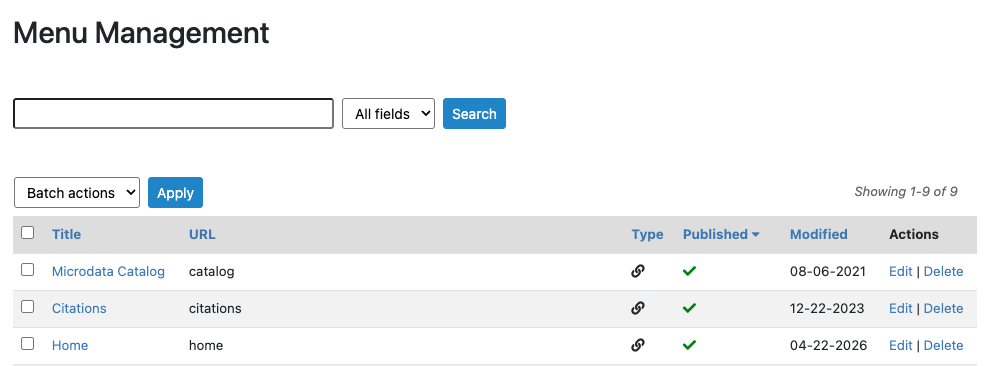
If Default home page is left unset, NADA falls back to other rules (such as the lowest-weight menu item). Configure Default home page explicitly to avoid surprises.
2. Using views/static/custom (advanced)
For layouts that need PHP, shared partials, or logic beyond the admin HTML editor, use static views on the server.
How static pages resolve
NADA looks for views in this order:
application/views/static/custom/{slug}.php— your overrides (keep these when upgrading).application/views/static/{slug}.php— pages shipped with NADA.
The {slug} is the same path segment you use in Default home page (for example home).
Shipped default home page
NADA includes a default home view at:
application/views/static/home.php
That file drives the stock landing experience (for example search area, statistics, and lists of popular or recent studies). It is a normal PHP view; you may rely on models and helpers already loaded by the controller.
To customize safely across upgrades, copy the file into the custom folder and edit the copy:
application/views/static/home.php
        → application/views/static/custom/home.php
Then set Default home page to home if it is not already. Only files under custom/ should be edited for long-term maintenance; treat files under views/static/ (without custom) as read-only vendor defaults.
Optional custom home template (home.custom.php)
NADA may ship an alternate starter layout at:
application/views/static/custom/home.custom.php
That filename is not loaded automatically as the home page—only home.php is used for the home slug. To adopt this template, copy home.custom.php to home.php in the same folder, or rename home.custom.php to home.php. Then edit home.php as needed.
Choose one approach:
- Copy — Keeps
home.custom.phpon disk as a reference or starting point for future merges after upgrades. - Rename — Activates the template immediately; keep a backup elsewhere if you still want the original
.customfile for comparison.
Ensure Default home page is set to home so the site root uses this view.
Other static slugs
You can add more files, for example application/views/static/custom/about.php, and expose them via the menu or Default home page using the matching slug (about).
Server access required
Deploying files under application/views/static/custom/ requires access to the web server or your deployment pipeline. Incorrect PHP can cause errors on the affected page—test after each change.
Summary
| Approach | Best for | Where |
|---|---|---|
| Menus + Default home page | Editorial HTML, redirects, no server access | Site administration |
views/static/custom/{slug}.php | PHP layouts, reuse of NADA helpers/models, full control | Server filesystem |