Publishing microdata
This tutorial walks through publishing a sample microdataset using the administrator interface and the API.
Before you start, download the try_micro zip file from our GitHub repository and extract its content in a new folder. The content of this new folder should be as shown below. Note that this folder structure is not imposed by NADA (see Organizing your files), but it is important to keep it as is as the AFR_1996_WDAAF_v01_M.rdf file, which contains metadata for the resources related to the dataset, includes relative paths where the resource files are expected to be found.
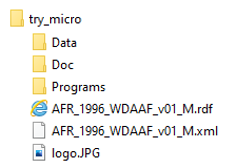
In these folders, you will find the following content:
- In the root folder, the DDI-compliant metadata (xml file), the Dublin Core-compliant metadata for the related resources (rdf file), and a jpg image file to be used as a thumbnail in the NADA catalog.
- In the Data folder, the dataset to be published in the catalog. In this case, the dataset is contained in a single compressed file for each one of the three formats that we want to make available (Stata, SPSS, and CSV).
- In the Doc folder, all related documentation files. In this particular case, this is limited to a PDF file containing a working paper. In most cases, the documentation files will include survey questionnaires, interviewer manual, technical and analytical report, and others.
- In the Programs folder, a Stata script (do file) used to format teh original dataset. It is good practice to share scripts and code that would allow users to replicate data processing, editing, tabulation, analysis, and visualizations.
Using the administrator interface
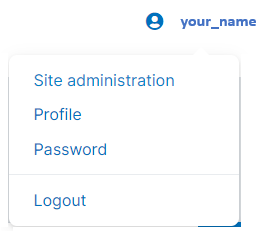
To publish the dataset and the related materials in your new NADA catalog, first login as administrator, then in the login sub-menu, select Site administration.
In the Studies menu, select Manage studies > Central Data Catalog

Click on Add study

In the Add study to collection frame, browse and select the DDI (.XML) and RDF files found in folder try_micro (respectively, AFR_1996_WDAAF_v01_M.xml and AFR_1996_WDAAF_v01_M.rdf).
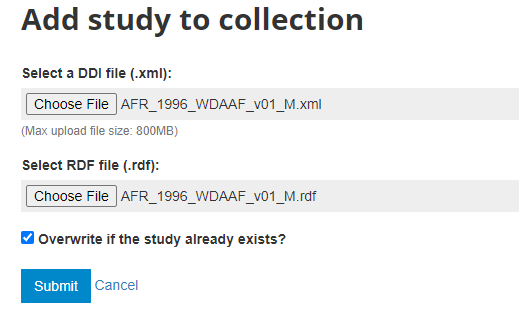
The metadata contained in the XML and RDF files will be uploaded. Please note that this will only upload metadata to your web server. No dataset, document, or other external resource file has been uploaded yet.
The Overview page will now be displayed, providing you with the possibility to take various actions.
In Country, you will notice that Eswatini is highlighted in red. This means that the country name is not found in a reference list of countries (in this case, it is because the reference list is outdated and still refers to Eswatini as Swaziland). See Countries for how to fix this. For now, let's ignore it.
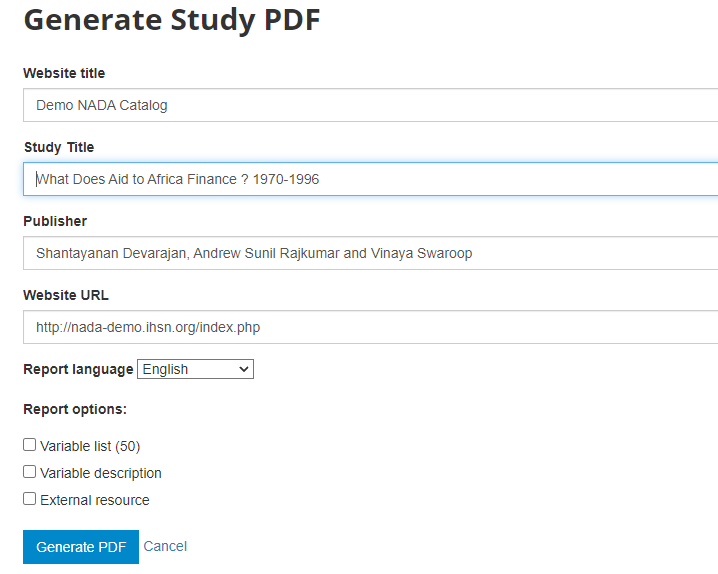
In Metadata in PDF, click on Generate PDF (optional). Keep the options by default in the PDF generation form, and click Generate PDF. This will create a PDF version of the documentation, which will automatically be made available to users in your catalog.
In Data access, select Open access then click Update to define the microdata access policy for this study.
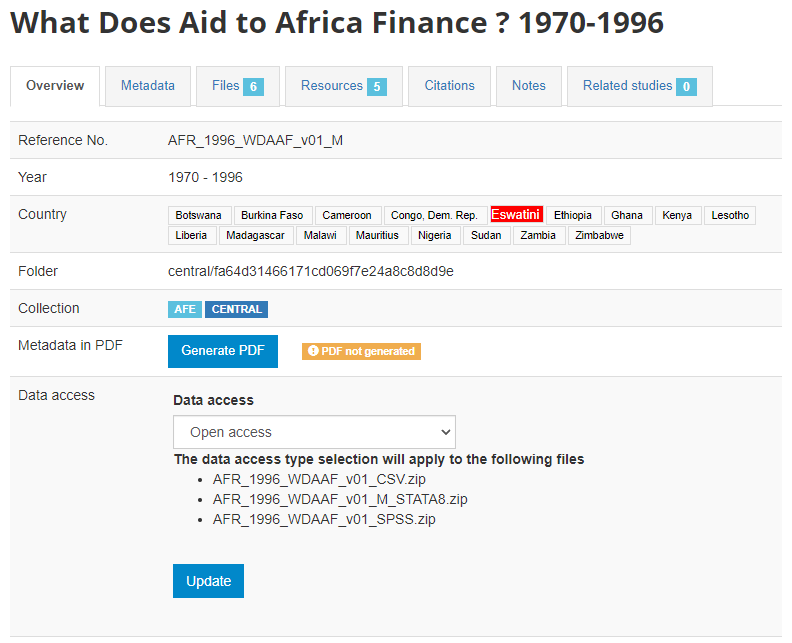
Leave all other components of the page unchanged (the Administrator guide provides a description of all components).
Skip the Metadata tab, which is only used to generate metadata from scratch, or to edit uploaded metadata.
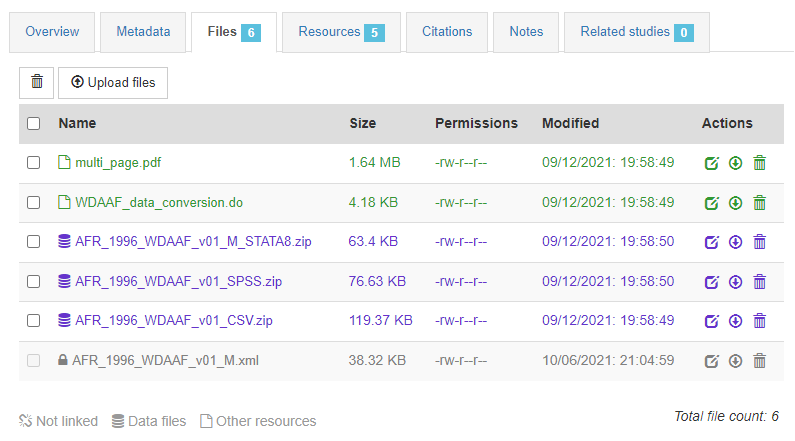
In tab Files, you will upload all files that you want to make accessible on-line in your NADA catalog (data files, documents, scripts, or other). In our case, select the survey report (multi_page.pdf file found in folder /Doc), the three zip files containing the microdata found in folder /Data, and the Stata do file (script) found in folder /Programs. You will see that the type of file is indicated by an icon and a specific font color. It is important to verify that the data files are indeed recognized as microdata (the restrictions that may come with the access policy you enter in "Data access" will only apply to these files).
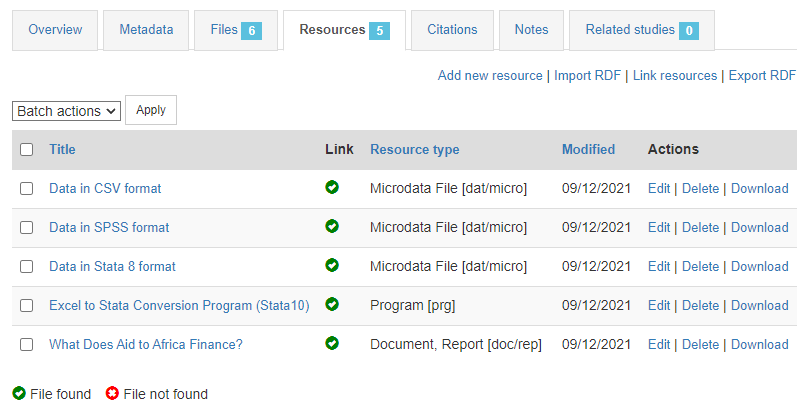
In the Resources tab, you will see a list of external resources, which should correspond to the files you uploaded. This list was extracted from the rdf file.
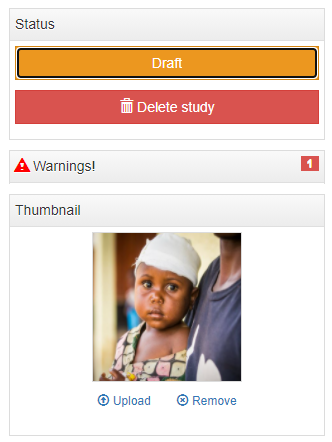
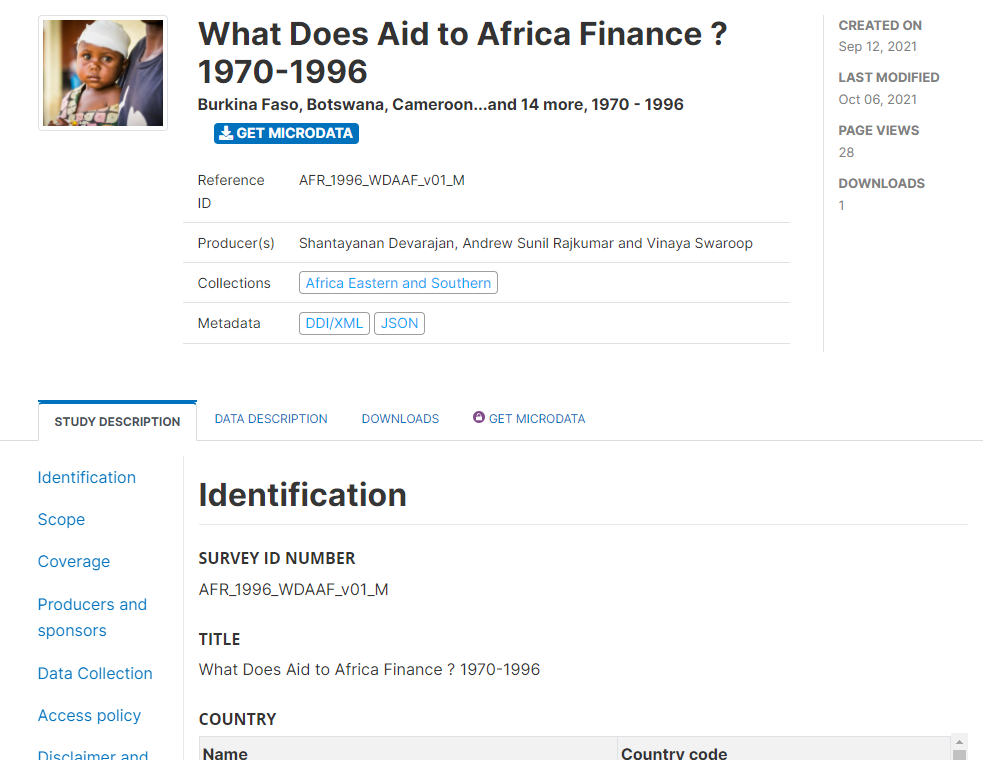
Last, upload a logo/thumbnail for your dataset (file logo.jpg or any other JPG file of your choice), and click on Draft to change the status of your new entry to Published. Your dataset is now visible in your catalog. See the latest addition in the "Home page" or browse the catalog to find it.
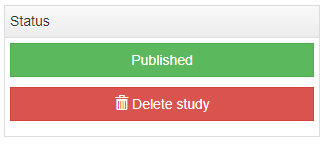
If you want to delete this entry, click on Delete study. If you want to unpublish it without deleting it, click on Published to set it to Draft (in which case it will remain in your catalog, but only visible to the catalog administrators).
Using the API and R or Python
Another option to publish a dataset in a NADA catalog is to make use of the NADA API. We show below how the same dataset and resources that were used in the example above can be uploaded in your catalog using R (using the NADAR package) or Python (using the PyNADA library). Using the API to maintain a NADA catalog requires an API authentication key with administrator privileges.
library(nadar)
library(readxl)

# Set administrator API key and catalog URL
# The API key must be kept strictly confidential and never be entered in clear in a script,
# to avoid accidental sharing. A recommended option is to read it from an external file.

my_keys <- read.csv("C:/CONFIDENTIAL/my_keys.csv", header = F, stringsAsFactors = F)
set_api_key(my_keys[5,1])  # We assume here that the key is stored in cell A5
set_api_url("http://nada-demo.ihsn.org/index.php/api/")  # Enter the URL of your catalog
set_api_verbose(FALSE)

# Set the default folder, where the DDI and RDF files are stored.
# This folder has a sub-folder /Doc where the external resource is located (the
# resources must be stored in a folder with a relative path corresponding to the
# path provided in the RDF file)

setwd("C:/demo_nada_files/try_micro")

# Upload the DDI (only contains the dataset metadata; does not contain data)

import_ddi(xml_file = "./AFR_1996_WDAAF_v01_M.xml",
           repositoryid = "central",
           overwrite = "yes",
           access_policy = "open",  # This is where we set the access policy
           published = 1)  # Set this to 0 to upload as draft

# Upload the RDF and the resource files
# The location (relative path) of the resource files is provided in the RDF file;
# As long as the files are found in the correct folders, they will be uploaded to
# the web server and made accessible in the NADA catalog. To avoid entering the
# same resources multiple times, we delete all resources (in case any had been
# uploaded previously) before running the function.

external_resources_delete_all(dataset_idno = "AFR_1996_WDAAF_v01_M")

external_resources_import(dataset_idno = "AFR_1996_WDAAF_v01_M",
                          rdf_file = "./AFR_1996_WDAAF_v01_M.rdf",
                          skip_uploads = FALSE,
                          overwrite = "yes")

# We want to make the data accessible from the NADA catalog; the data files must
# therefore be uploaded on the web server. It is essential to declare the type
# as "microdata" (dctype = "dat/micro") as this will allow NADA to apply the
# appropriate access restrictions corresponding to the access policy for the
# dataset (in this case, we entered option access_policy = "open" in the
# ddi_import function, so the data files will be made directly accessible from
# the catalog without requiring users to register or request permission).

external_resources_add(
  idno = "AFR_1996_WDAAF_v01_M",
  dctype = "dat/micro",
  title = "Data in CSV format",
  overwrite = "yes",
  file_path = "./Data/AFR_1996_WDAAF_v01_CSV.zip"
)

external_resources_add(
  idno = "AFR_1996_WDAAF_v01_M",
  dctype = "dat/micro",
  title = "Data in Stata 8 format",
  overwrite = "yes",
  file_path = "./Data/AFR_1996_WDAAF_v01_M_STATA8.zip"
)

external_resources_add(
  idno = "AFR_1996_WDAAF_v01_M",
  dctype = "dat/micro",
  title = "Data in SPSS format",
  overwrite = "yes",
  file_path = "./Data/AFR_1996_WDAAF_v01_SPSS.zip"
)

# Add a thumbnail

thumbnail_upload(idno = "AFR_1996_WDAAF_v01_M", thumbnail = "./logo.JPG")
import pynada as nada
import pandas as pd
import os

# Set administrator API key and catalog URL
# The API key must be kept strictly confidential and never be entered in clear in a script,
# to avoid accidental sharing. A recommended option is to read it from an external file.

my_keys = pd.read_csv("C:/CONFIDENTIAL/my_keys.csv", header = None)
nada.set_api_key(my_keys.iat[4, 0])  # Assuming the key is stored in cell A5
nada.set_api_url('https://nada-demo.ihsn.org/index.php/api/')  # Enter the URL of your catalog

# Set the default folder, where the DDI and RDF files are stored.
# This folder has a sub-folder /Doc where the external resource is located (the
# resources must be stored in a folder with a relative path corresponding to the
# path provided in the RDF file)

os.chdir("demo_nada_files/try_micro")

# Upload the DDI

nada.import_DDI(file = "AFR_1996_WDAAF_v01_M.xml",
                overwrite = "yes",
                repository_id = "central",
                access_policy = "open",  # This is where we set the access policy
                published = 1)  # Set this to 0 to upload as draft

# Upload the RDF and the resource files
# The location (relative path) of the resource files is provided in the RDF file;
# As long as the files are found in the correct folders, they will be uploaded to
# the web server and made accessible in the NADA catalog. To avoid entering the
# same resources multiple times, we delete all resources (in case any had been
# uploaded previously) before running the function.

nada.delete_all_resources("AFR_1996_WDAAF_v01_M")

nada.import_RDF(dataset_id = "AFR_1996_WDAAF_v01_M",
                file = "AFR_1996_WDAAF_v01_M.rdf")

# We want to make the data accessible from the NADA catalog; the data files must
# therefore be uploaded on the web server. It is essential to declare the type
# as "microdata" (dctype = "dat/micro") as this will allow NADA to apply the
# appropriate access restrictions corresponding to the access policy for the
# dataset (in this case, we entered option access_policy = "open" in the
# ddi_import function, so the data files will be made directly accessible from
# the catalog without requiring users to register or request permission).

nada.add_resource(dataset_id = "AFR_1996_WDAAF_v01_M",
                  dctype = "dat/micro",
                  title = "Data in CSV format",
                  file_path = "Data/AFR_1996_WDAAF_v01_CSV.zip",
                  overwrite = "yes")

nada.add_resource(dataset_id = "AFR_1996_WDAAF_v01_M",
                  dctype = "dat/micro",
                  title = "Data in Stata 8 format",
                  file_path = "Data/AFR_1996_WDAAF_v01_M_STATA8.zip",
                  overwrite = "yes")

nada.add_resource(dataset_id = "AFR_1996_WDAAF_v01_M",
                  dctype = "dat/micro",
                  title = "Data in SPSS format",
                  file_path = "Data/AFR_1996_WDAAF_v01_SPSS.zip",
                  overwrite = "yes")

# Add a thumbnail

nada.upload_thumbnail(dataset_id = "AFR_1996_WDAAF_v01_M", file_path = "logo.JPG")