Installation (Windows server)
How to install NADA on Windows Server with IIS, PHP, and either MySQL 8.x / MariaDB 10.x+ or Microsoft SQL Server.
Before you start: Installation overview (requirements and folder layout).
Pattern aligned with the Metadata Editor Windows installation.
IIS on Windows 10/11 Pro — the same steps apply; enable IIS and CGI via “Turn Windows features on or off.”
Prerequisites
| Component | Version |
|---|---|
| OS | Windows Server with IIS 10+ recommended |
| PHP | 7.4 minimum; 8.x recommended — Non-Thread Safe (NTS) x64 for IIS |
| Database | MySQL 8.x / MariaDB 10.x+, or SQL Server 2012+ with full-text |
| Web server | IIS 10+ with CGI / FastCGI |
| PHP Manager for IIS | Optional but recommended |
| URL Rewrite | Optional — iis.net URL Rewrite |
Enable IIS and the CGI feature (Server Manager or Windows Features) before registering PHP.
Step 1: Install PHP and register it with IIS
1a. Download PHP
- Download PHP NTS x64 from windows.php.net (prefer 8.x; minimum 7.4).
- Extract to a stable path, for example
C:\PHPorC:\PHP\8.3. - Copy
php.ini-productiontophp.iniif needed.
1b. PHP Manager for IIS (recommended)
PHP Manager for IIS registers PHP and manages extensions from IIS Manager.
- Install PHP Manager (match your IIS version); restart IIS Manager.
- IIS Manager → server node → PHP Manager → Register new PHP version → select
php-cgi.exe(e.g.C:\PHP\php-cgi.exe). - Enable extensions:
xsl/php_xsl.dllmbstringmysqli— MySQL or MariaDBsqlsrv— only if using SQL Server (install drivers first: SQL Server guide)
- Use Check phpinfo() (or a temporary
info.php), confirm extensions, then delete any testinfo.php.
Recycle the app pool (or use PHP Manager refresh) after php.ini changes.
1c. Manual FastCGI (without PHP Manager)
- Confirm CGI/FastCGI is installed for IIS.
- IIS Manager → Handler Mappings → Add Module Mapping:
- Request path:
*.php - Module:
FastCgiModule - Executable:
C:\PHP\php-cgi.exe - Name: e.g.
PHP_via_FastCGI
- Request path:
- Edit
php.ini— see PHP settings. - Recycle the application pool.
1d. Recommended php.ini values
memory_limit = 256M
max_execution_time = 300
post_max_size = 800M
upload_max_filesize = 800M
More: PHP settings.
Step 2: Folder layout and download
Typical path:
C:\inetpub\wwwroot\nadaCreate the folder. The application root must contain index.php (see folder layout).
Download options:
- Zip (recommended for production): NADA Releases — extract so
index.phpis underC:\inetpub\wwwroot\nada(remove an extra nested folder if the zip creates one). - Git: Install with Git, then continue from Step 3.
Prefer tagged releases for production.
Step 3: Database
Choose one database for the whole install.
Option A — MySQL 8.x or MariaDB 10.x+
- Install MySQL or MariaDB for Windows; set and record the root password.
- Create database and user (Workbench, MariaDB client, or CLI):
CREATE DATABASE nada CHARACTER SET utf8mb4 COLLATE utf8mb4_unicode_ci;
CREATE USER 'nada'@'localhost' IDENTIFIED BY 'yourpassword';
GRANT SELECT, INSERT, UPDATE, DELETE, CREATE, DROP, INDEX, ALTER,
  CREATE TEMPORARY TABLES, LOCK TABLES ON nada.* TO 'nada'@'localhost';
FLUSH PRIVILEGES;- In the NADA folder, copy
application\config\database-sample.phptodatabase.phpand set credentials withdbdriver=mysqli.
Full field reference and sample array: Configure MySQL / MariaDB.
Option B — Microsoft SQL Server
SQL Server is a full install option, not an add-on.
- Ensure SQL Server has full-text enabled.
- Install PHP sqlsrv drivers and (if needed) SQL Client — follow Install with SQL Server through
database.phpconfiguration. - Enable the
sqlsrvextension in PHP Manager (orphp.ini), then return here for Step 4.
Step 4: Permissions
Grant the IIS application pool identity Modify on datafiles, logs, and files (create the folders if missing).
Default identity:
IIS AppPool\DefaultAppPoolElevated command prompt (from the NADA root):
icacls datafiles /grant "IIS AppPool\DefaultAppPool:(OI)(CI)M" /T
icacls logs /grant "IIS AppPool\DefaultAppPool:(OI)(CI)M" /T
icacls files /grant "IIS AppPool\DefaultAppPool:(OI)(CI)M" /T
For a custom app pool, use IIS AppPool\<YourAppPoolName>.
Security
Consider locating datafiles outside inetpub after install.
Step 5: Configure the IIS site
- Open IIS Manager.
- Add a Website or Application with physical path = NADA application root (
...\nadawhereindex.phplives). - Application pool: No Managed Code, Integrated pipeline.
- Confirm
.phpmaps to FastCGI (PHP Manager or Step 1c). - Recycle the app pool after PHP changes.
Optional: install URL Rewrite. Apache-oriented clean URL docs: Clean URLs.
Step 6: Run the web installer
- Browse to
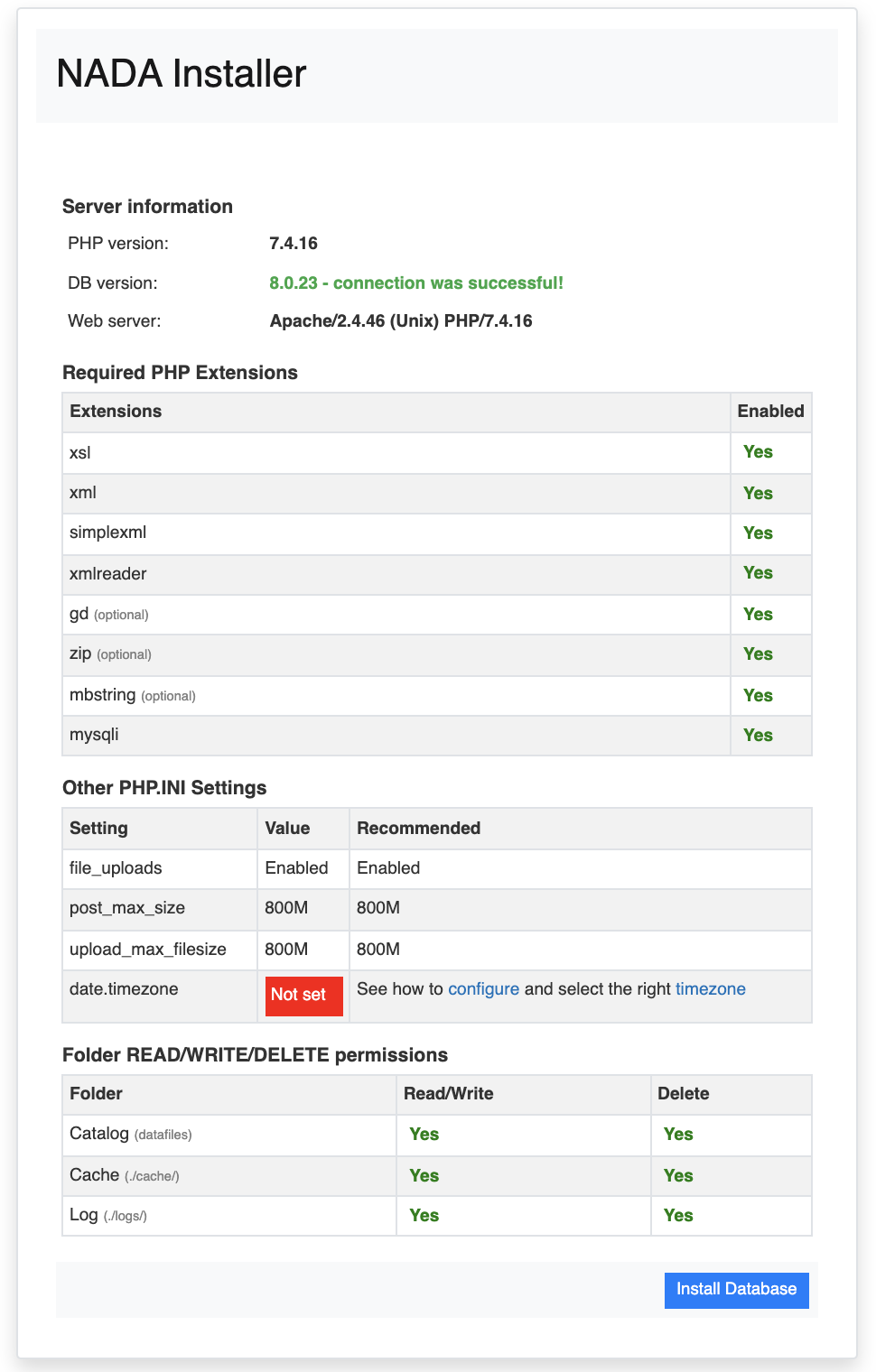
http://localhost/nada(or your site binding/host header). - Fix any failed prerequisite checks (extensions, writable folders, database).
- Click Install Database and create the Site Administrator account.
Complex password
Use at least 12 characters with uppercase, numbers, and punctuation. Do not lose this account.
Step 7: Post-install
- Email and other Configurations
- Optional: Solr, themes, CSP
- Getting started
Hardening
- Dedicated DB user (not
root/sa) - Strong admin password
- Delete temporary
info.php - Move
datafilesoutside the web root when possible - Plan backups (Backup)
Troubleshooting
| Issue | What to check |
|---|---|
| 500 / handler errors | PHP Manager registration or FastCGI mapping; path to php-cgi.exe; recycle app pool |
| Wrong php.ini / missing extensions | PHP Manager phpinfo; enable extensions; PHP settings |
| Installer cannot write | App pool identity on datafiles, files, logs |
| Database connection failed | database.php; MySQL service or SQL Server / sqlsrv drivers |
| PHP Manager missing | Correct IIS version installer; restart IIS Manager as administrator |